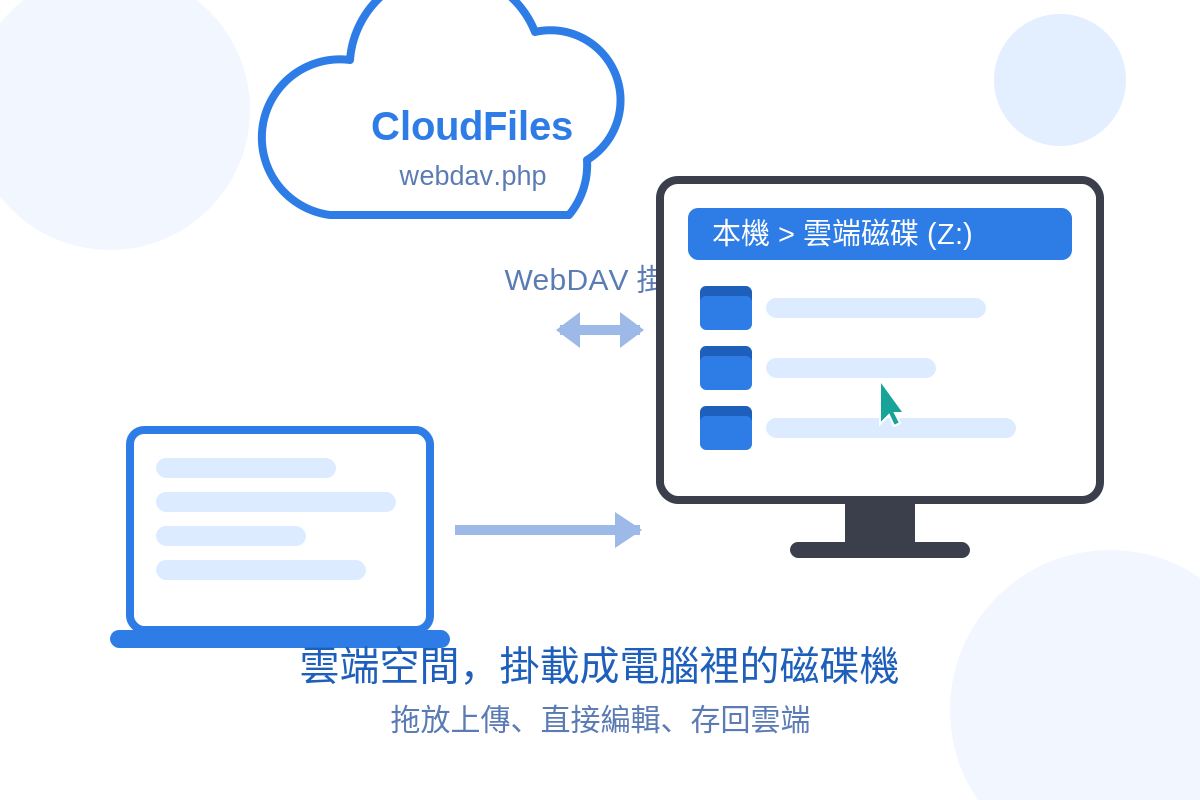
WebDAV in practice: mount the cloud drive as a disk on your computer (Windows, Mac, FileZilla — full steps)
Written in 2026/10/27Are you used to organising files in Windows Explorer or Finder? If your cloud storage could appear on your computer like a local disk — drag in to upload, open to edit, hit save and it's stored back in the cloud — your workflow barely has to change. The technology that makes this possible is called WebDAV. We covered the concepts in What is WebDAV? How do I mount a cloud drive?; this post is the hands-on version: we'll walk through it with CloudFiles, from enabling the feature to a finished mount.
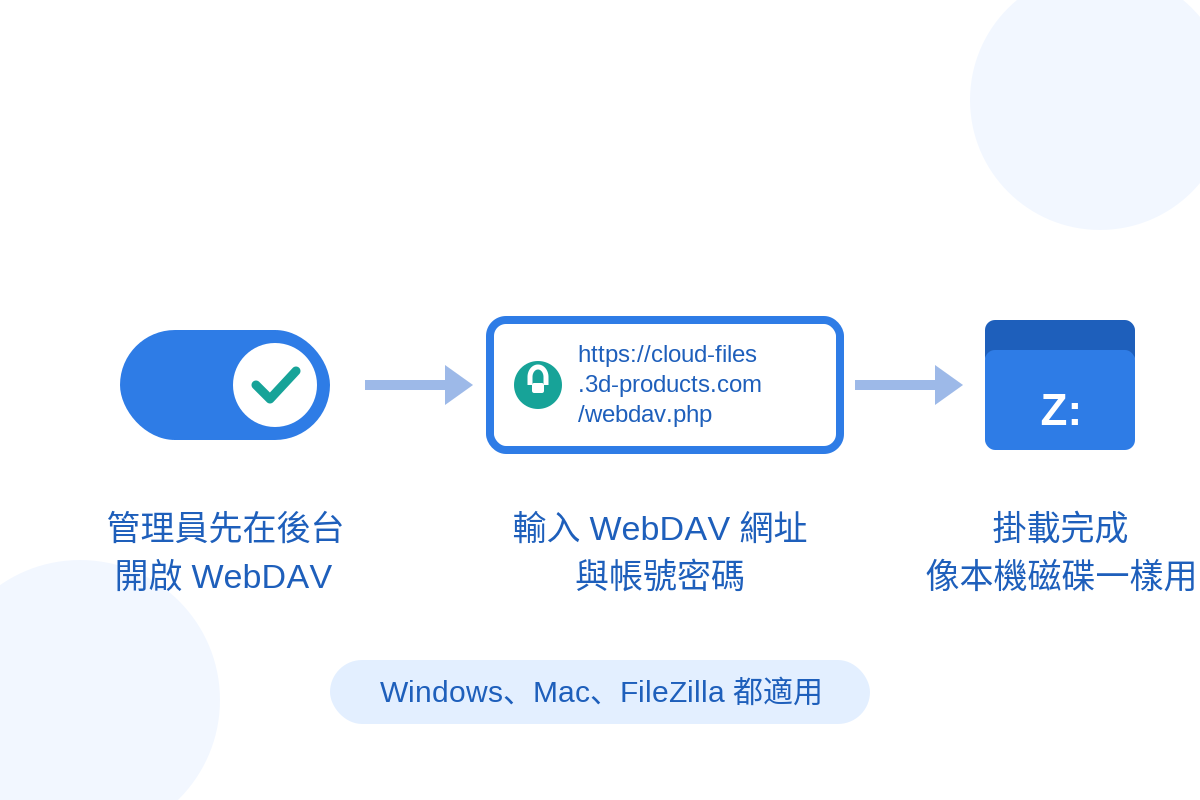
Before starting, prepare three pieces of connection info: the WebDAV URL https://cloud-files.3d-products.com/webdav.php, your CloudFiles account, and your password (the same one as the web login — no separate application needed). One prerequisite: WebDAV is off by default in CloudFiles — an administrator must first enable the WebDAV switch in the back-office settings (wrench icon) before company accounts can use it (admin guide: How do I enable WebDAV mounting for users?).
Windows mounting steps: open File Explorer, right-click This PC, choose Map network drive; paste the WebDAV URL in the Folder field, tick Connect using different credentials, click Finish and enter your account and password. Once connected, the cloud space appears with a drive letter alongside D: and E:, and opening and saving files works just like local.
One common Windows pitfall, up front: if you've pasted the URL and entered credentials but keep getting authentication errors, Windows' WebClient service may not allow basic authentication. In Registry Editor, navigate to HKEY_LOCAL_MACHINE\SYSTEM\CurrentControlSet\Services\WebClient\Parameters, set Basic AuthLevel to 2, then restart the service from an admin command prompt with net stop webclient and net start webclient. If that sounds like too many steps, the official help page (Can I mount the CloudFiles drive locally? (WebDAV)) has a fully illustrated version — just follow it.
Mac is simpler: in Finder's menu choose Go > Connect to Server, enter the WebDAV URL, click Connect, choose Registered User, enter your account and password — the cloud space appears in Finder's sidebar. iPhone and iPad work too, via any file app that supports WebDAV: enter the same URL and account and you can open and edit cloud files on the road.
If you prefer transfer software, use FileZilla Pro or Cyberduck. Important: WebDAV is a FileZilla Pro (paid) feature — the free version doesn't include this protocol. In Site Manager, add a site with protocol WebDAV, host https://cloud-files.3d-products.com/webdav.php, logon type Normal, and your account and password. Free Cyberduck supports WebDAV too, with identical settings. Once connected, both behave almost exactly like FTP — but WebDAV runs over HTTPS port 443, so no extra ports to open for file transfer.
On security, two things you must know. First, CloudFiles' WebDAV uses encrypted HTTPS connections (for transport-encryption concepts, see What are SSL 256-bit and AES 256-bit encryption?) — never accept any setting that downgrades to http. Second, WebDAV does not support OTP two-step verification — that's a protocol-level limitation. IP restrictions still apply, but for a space with WebDAV enabled, make sure passwords are strong and make good use of company IP restrictions. Also: WebDAV only ever shows the folders your account has permission to see — permission controls don't lapse because you changed the entrance.
Let's be clear about WebDAV's limits up front, so you don't use it in the wrong place. It suits everyday documents — open, edit, save back — but not moving files of several GB: WebDAV itself has no resume, so if the network drops you start over; and Windows' built-in client also limits single-file size. For large files and unstable networks, use the web upload instead (CloudFiles supports resumable uploads, up to 5GB per file). Also, because the files actually live in the cloud, opening them will be a little slower than from a local disk — that's common to every WebDAV mount.
When you can't connect, check in this order — it solves most cases: 1. Has the administrator enabled WebDAV in the admin settings? 2. Is the URL the complete https://cloud-files.3d-products.com/webdav.php, with nothing added or missing? 3. Are the username and password the same pair you use for the web version? 4. On Windows, has Basic AuthLevel been set to 2 and the service restarted? If all four check out and it still won't connect, write to us at [email protected].
Mounting the cloud as a local disk is the most effective step for getting colleagues to switch to the cloud painlessly — no interface to learn, no habits to change. CloudFiles charges a flat annual fee with unlimited users, and WebDAV is an included feature at no extra cost. You can start with a free one-month trial and mount it on your own computer; for the illustrated version, the help pages show every Windows and Mac step with screenshots.