The Day Your Company Cloud Account Gets Compromised: Do These Five Things First
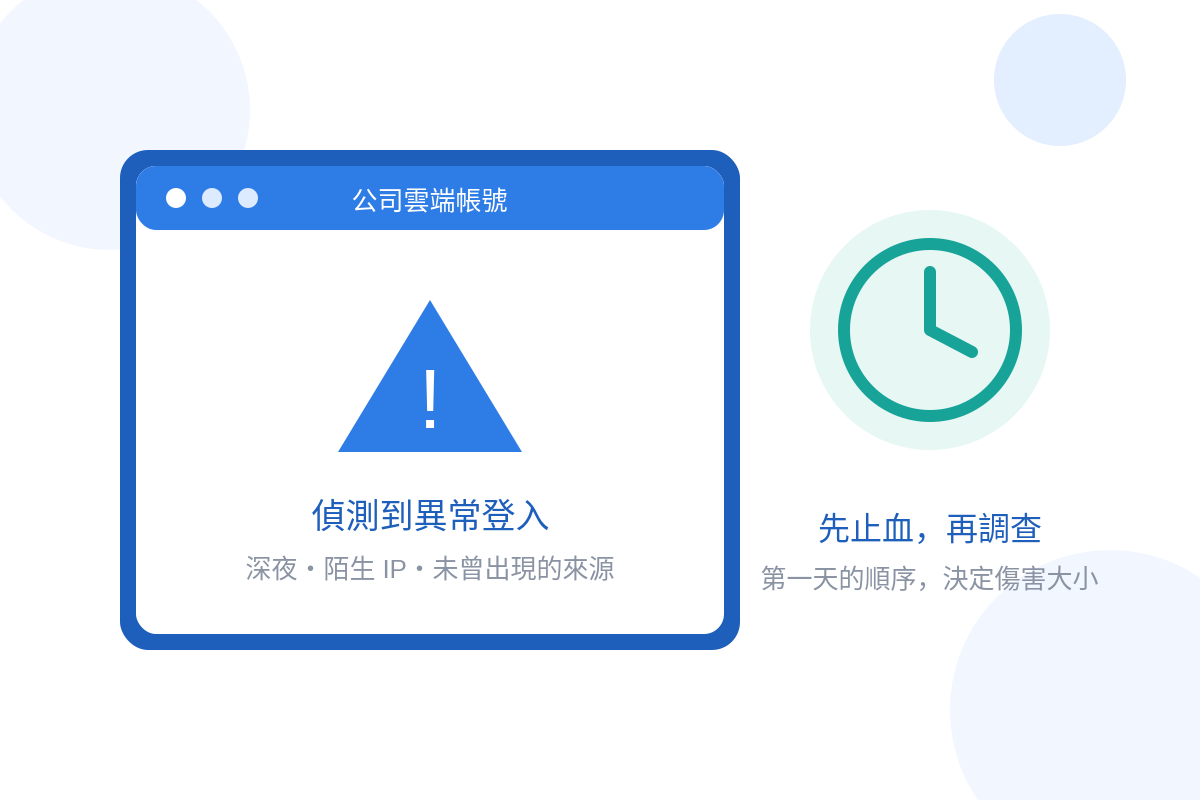
Written in 2026/11/14One morning, a colleague finds operations in the cloud account they did not perform: an unfamiliar late-night login, files they never touched opened. Trend Micro's November 2026 observations note that the click-through rate of AI-generated phishing emails has climbed from 12% to 54%; Mandiant's and Google's threat reports also point out that credential theft and session hijacking are now the leading intrusion methods. In other words, the question is no longer "will we be breached" but "on the day it happens, how fast can you stop the damage." This post is not about prevention — it is about the response sequence once you spot something wrong: five things, in order.
1. Change the password first: immediately set a brand-new strong password on the compromised account, and change it on every other service that shares the same password. The moment you spot the anomaly, invalidate the stolen credential — before any investigation. The reason is direct: the password is exactly what the attacker holds; change it and they can no longer log in. One counterintuitive note: do not rush to delete any files or data — they are evidence for the investigation that follows, and once deleted they cannot be recovered.
2. Work backward from access logs: which files were touched, and from which IPs. With the password changed, answer three questions: how long was the attacker inside, which files were viewed or downloaded, and were other accounts touched. CloudFiles access logs are kept for five years, recording account, time and source: list the login IPs and accessed files during the abnormal period, establish the damage scope first, then decide whether to notify clients or regulators. Without logs, an incident can only be guessed at; with logs, an investigation is possible.
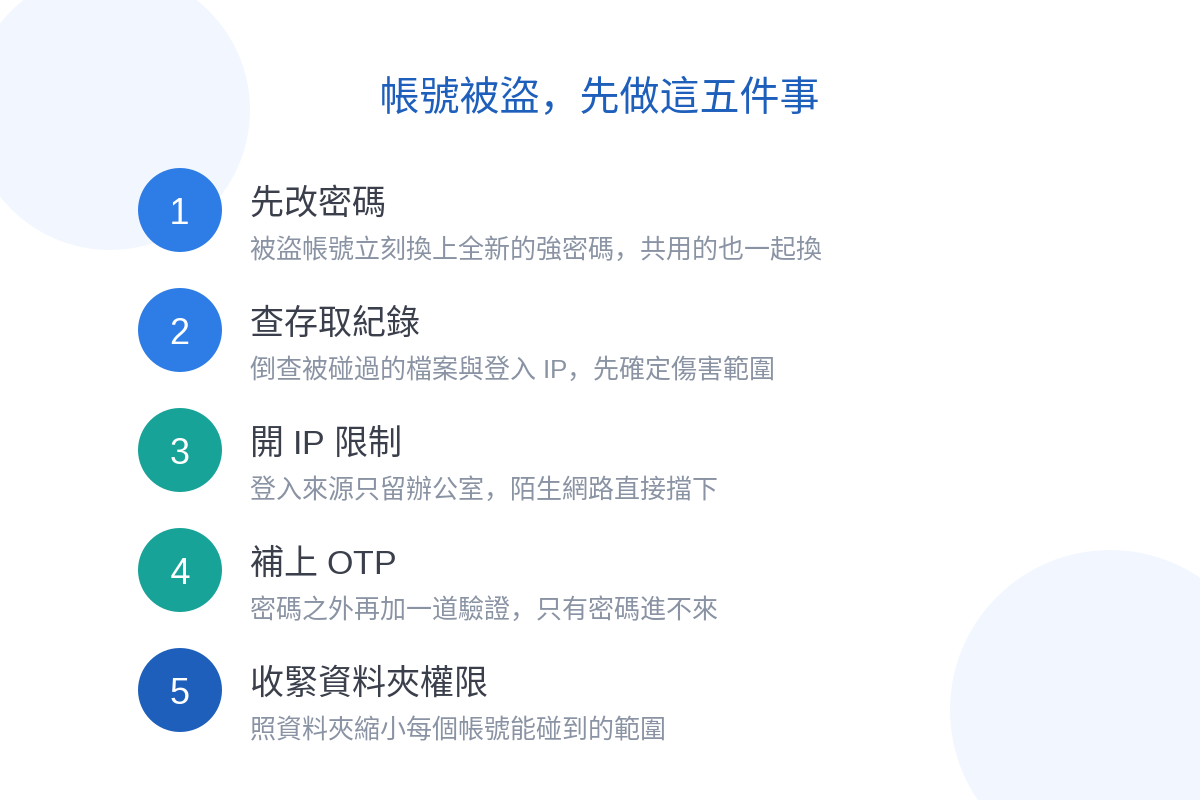
3. Turn on IP restrictions and pull login sources back to the office. Once the scope is confirmed, narrow the door: CloudFiles' IP restrictions are the first line of defence — with them on, only company-designated IP sources can log in, so even if an attacker gets a new password, they can't get in from an unfamiliar network. During the response, start with the allowed range tighter than usual; once everyone can log in normally, relax it as needed. WebDAV-mounted connections can't use OTP, so this IP restriction is also that connection's main line of defence. Why IP restrictions are the first line of defence is something we covered in Japanese security incidents keep mounting: is it really safe to keep company files in the office?.
4. Add OTP: on top of the password, one more check only the real owner can pass. The most common root of incidents like this is an account locked with a password alone. After stopping the bleeding, enable OTP one-time codes on the affected account and on every staff account: from then on, login requires the password plus a one-time code from an authenticator app or mailbox, so an attacker holding only the password still cannot get in. Once this step is done, that leaked password can never pry this door open again.
5. Tighten folder permissions to shrink the next incident's blast radius. The last step is to size the loss from "if it's stolen again" in advance: check folder permissions one by one — anyone who doesn't normally need the finance folder gets no access; anyone who only needs to look gets view-only. CloudFiles folder permissions can be set per level, so when one account is stolen, the attacker touches only the few folders that account was originally authorised for — not the whole company. Tightening permissions isn't for this incident; it keeps the next one as small as possible.
On the day an account is compromised, order is everything: change the locks first, then check the logs, narrow the door, add the second verification, and tighten permissions last. The prevention half — turning MFA on in advance — is what we wrote about in Enabling MFA on company cloud accounts: the five spots people get stuck; this post is about after it happens. CloudFiles offers a free one-month trial on a flat annual fee with unlimited users: set up IP restrictions, OTP and folder permissions while things are calm, add access logs retained for five years, and on the day an abnormal login really appears, what you'll have is “checkable and blockable” — not guesswork from zero.